Compare and Display difference between 2 Files

Posted by Sagar Patil

Comparing Files is one of very common task as a DBA, System Administrator. There are tonnes of Oracle,Websphere,linux configuration files. Often I have to compare one server to another and locate changes between environments.

Recently one of my websphere server broke down. Despite my good efforts I couldn’t revive it so I had to restore it from a backup.  Then came the task to compare the websphere confiuration between good and bad. When I looked at $WAS_HOME/bin/backupconfig , it backed up more than 400 files and carrying one to one comparison is no way possible.  I used following script to locate the difference.

#!/usr/bin/perl
# file_compare.pl
# Purpose: compare two files and show differences
# usage: file_compare.pl filename1 filename2

use strict;
use warnings;

my $file1 = shift or die “filename missing \n”;
my $file2 = shift or die “filename missing \n”;

open (FILE1, “< $file1”) or die “Can not read file $file1: $! \n”;
my @file1_contents = <FILE1>; # read entire contents of file
close (FILE1);

open (FILE2, “< $file2”) or die “Can not read file $file2: $! \n”;
my @file2_contents = <FILE2>; # read entire contents of file
close (FILE2);

my $length1 = $#file1_contents; # number of lines in first file
my $length2 = $#file2_contents; # number of lines in second file

if ($length1 > $length2) {
# first file contains more lines than second file
my $counter2 = 0;
foreach my $line_file1 (@file1_contents) {
chomp ($line_file1);

if (defined ($file2_contents[$counter2])) {
# line exists in second file
chomp (my $line_file2 = $file2_contents[$counter2]);

if ($line_file1 ne $line_file2) {
print “\nline ” . ($counter2 + 1) . ” \n”;
print “< $line_file1 \n” if ($line_file1 ne “”);
print “— \n”;
print “> $line_file2 \n\n” if ($line_file2 ne “”);
}
}
else {
# there is no line in second file
print “\nline ” . ($counter2 + 1) . ” \n”;
print “< $line_file1 \n” if ($line_file1 ne “”);
print “— \n”;
print “> \n”; # this line does not exist in file2
}
$counter2++; # point to the next line in file2
}
}
else {
# second file contains more lines than first file
# or both have equal number of lines
my $counter1 = 0;
foreach my $line_file2 (@file2_contents) {
chomp ($line_file2);

if (defined ($file1_contents[$counter1])) {
# line exists in first file
chomp (my $line_file1 = $file1_contents[$counter1]);

if ($line_file1 ne $line_file2) {
print “\nline ” . ($counter1 + 1) . ” \n”;
print “< $line_file1 \n” if ($line_file1 ne “”);
print “— \n”;
print “> $line_file2 \n” if ($line_file2 ne “”);
}
}
else {
# there is no line in first file
print “\nline ” . ($counter1 + 1) . ” \n”;
print “< \n”; # this line does not exist in file1
print “— \n”;
print “> $line_file2 \n” if ($line_file2 ne “”);
}
$counter1++; # point to next line in file1
}
}

Output

$perl compare_files.pl notworking.lst working.lst  | more

line 1
< 4     notworking/Cell/pmirm.xml

> 4     working/Cell/pmirm.xml
line 2
< 4     notworking/Cell/resources-pme.xml

> 4     working/Cell/resources-pme.xml
line 3
< 32    notworking/Cell/resources.xml

> 32    working/Cell/resources.xml

WebSphere : Synchronize Cluster Configuration with Dmgr & Nodes

Posted by Sagar Patil

In a Network Deployment environment, the deployment manager maintains the master repository for all of the WebSphere Application Server nodes and servers that it manages in the cell. Copies of the files that each node needs are replicated to that node by a process known as synchronization.

In a Network Deployment environment with two nodes,  All of the configuration files relevant to both Node01 and Node02 are kept in the master repository along with the  configuration files that are relevant to the deployment manager. Only those files that are relevant to Node01 are replicated to Node01, and only those files that are relevant to Node02 are replicated to Node02. Each node gets a copy of the serverindex.xml file for every other node because this contains connection information for the other nodes, that is host names and ports.

We  can set each node agent to perform automatic or manual synchronization and the interval at which each node agent will perform the synchronization. To set this in the administrative console,

select System administration → Node agents → nodeagent → File synchronization service.

We can manually initiate synchronization using the administrative console by selecting

System administration → Nodes, putting a check by the node that you wish to synchronize, and then clicking either Synchronize or Full Resynchronize.

You can also perform synchronization from the node agent using the syncNode.bat|sh script. You must stop the node agent to use this tool.

Websphere JVM hang issue : How to create heap or thread dump

Posted by Sagar Patil

You should check if application server process is running to determine a crash. To do this, you need to know process ID of application server. You can find process ID at server name.pid file in:

<WAS_install_root>/profiles/<profile>/logs/<server> For Exa : /opt/IBM/WebSphere/AppServer/profiles/Profile01/dmgr/logs/dmgr/dmgr.pid

Open the <server_name>.pid file in a text editor. The four-digit number is a process ID. You can use appropriate operating system command to check if process is actively running. If it’s not running, then you have a crash.

What is a Thread Dump? (Java Core Dumps) javacore.<PID><TIME>.txt

A thread dump is a dump of the stacks of all live threads. Thus useful for analysing what an app is up to at some point in time, and if done at intervals handy in diagnosing some kinds of ‘execution’ problems (e.g. thread deadlock).

When to generate ? : If you get unexplained server hangs under WebSphere, you can obtain, from the WebSphere server, a thread dump to help diagnose the problem.
In the case of a server hang, you can force an application to create a thread dump.

If an application server spontaneously dies, look for a file. The JVM creates the file in the product directory structure, with a name like javacore[number].txt

What is a heap dump? heapdump.<PID><TIME>.phd

A heap dump is a “binary dump” of the full memory the JVM is using, and is for example useful if you need to know why you are running out of memory – in the heap dump you could for example see that you have one billion User objects, even though you should only have a thousand, which points to a memory retention problem.

When to generate? : Memory leaks in the Java heap produce java.lang.OutOfMemoryError exceptions in log files. However, not all out-of-memory errors are caused by Java heap memory leaks. Out-of-memory errors can also be caused by the following conditions:
Java heap fragmentation. This fragmentation occurs when no contiguous chunk of free Java heap space is available from which to allocate Java objects. Various causes for this problem exist, including the presence of pinned or dosed objects or because of the repeated allocation of large objects.
Memory leaks in native heap. This problem occurs when a native component, like DB2 connections, is leaking.

How to create Thread Dumps (Java Core Dumps)/Heap Dumps using wsadmin.sh

1. Navigate to cd <WAS_ROOT>/profiles/<PROFILE_NAME>/bin/

2. Connect to deployment manager using wsadmin script
wsadmin.sh <DMGR_HOST> <PORT> -conntype SOAP -username <USERNAME> -password <PASSWORD>

3. Set object variable
wsadmin> set jvm [$AdminControl completeObjectName type=JVM,process=<JVM_NAME>,node=<NODE_NAME>,*]

4. Create HeapDump:

wsadmin>$AdminControl invoke $jvm generateHeapDump
/opt/IBM/WebSphere/AppServer/profiles/Profile01/Node01/./heapdump.20100202.121506.27816.0001.phd

5. Create ThreadDump:

wsadmin>set jvm [$AdminControl completeObjectName type=JVM,process=member2,*]

wsadmin>$AdminControl invoke $jvm dumpThreads

6. Heap or thread dump will be saved to <WAS_ROOT>/profiles/<PROFILE_NAME>/ directory with with respective naming convention

Create Thread dumps using “kill -3” command

Add following settings:
Navigated to: Servers > Application Servers > Server1 (or the name of  the server to get a heap dump) > Process Definition > Environment Entries

Then set following properties:
IBM_HEAPDUMP = true
IBM_HEAP_DUMP = true
IBM_JAVA_HEAPDUMP_TEXT=true
IBM_HEAPDUMP_OUTOFMEMORY=false
JAVA_DUMP_OPTS=ONANYSIGNAL(JAVADUMP[5],HEAPDUMP[5])

Here export JAVA_DUMP_OPTS=”ONANYSIGNAL(JAVADUMP[n],HEAPDUMP[m])”
– n is the maximum number of javacores that can be generated, and
– m is the maximum number of heapdumps that can be generated

export JAVA_DUMP_OPTS=”ONANYSIGNAL(JAVADUMP[5],HEAPDUMP[5])”
A kill -3 to the java process will generate a maximum of 5 javacore and 5 heapdump files.

Now using “kill -3 <AppServer PID>” should create a HeapDump & ThreadDump


Websphere First Failure Data Capture (FFDC) Logs

Posted by Sagar Patil

Often the websphere default systmout,systemerror logs doesn’t provide detailed information on error. In such cases have a look at directory logs under /opt/IBM/WebSphere/AppServer/profiles/Profile01/dmgr/logs/ffdc & /opt/IBM/WebSphere/AppServer/profiles/Profile01/Node/logs/ffdc

There are three property files which control the behavior of the ffdc filter. The files which are used are based upon the state of the server:
1. ffdcStart.properties: used during start of the server
2. ffdcRun.properties: used after the server is ready
3. ffdcStop.properties: used while the server is in the process of stopping

[was61@IBM]$ du -a | grep ffdcRun.properties
./WebSphere/AppServer/properties/ffdcRun.properties

#————————————————————————–
# Enable FFDC processing
#       FFDC=true [default]
#       FFDC=false
#————————————————————————–
FFDC=true
#————————————————————————–
# Level of processing to perform
#       0 – none
#       1 – monitor exception path
#       2 – dump the call stack, with no advanced processing
#       3 – 2, plus object interspecting the current object
#       4 – 2, plus use DM to process the current object
#       5 – 4, plus process the top part of the call stack with DMs
#       6 – perform advanced processing the entire call stack
#————————————————————————–
Level=4
#————————————————————————–
# ExceptionFileMaximumAge, number of days to purge the file
#       ExceptionFileMaximumAge=<any positive number of days>
#                Default is 7 days.
#—————————————————————————
ExceptionFileMaximumAge=7

The only file that you should modify is the ffdcRun.properties file. You can change the value of ExceptionFileMaximumAge property. This property specifies the number of days that an FFDC log remains in the <profileroot>/logs/ffdc directory before being deleted.

There are two artifacts which are produced by FFDC, the information can be located in the <Install Root>/logs/FFDC directory:

  1. * Exception Logs:<ServerName>_Exception.log here mgr_exception.log
  2. * Incident Stream:<ServerName>_<threadid>_<timeStamp>_<SequenceNumber>.txt

exa Exception Logs [was61@IBM]$ du -a | grep exception.log
4       ./WebSphere/AppServer/profiles/Profile01/dmgr/logs/ffdc/dmgr_exception.log
896     ./WebSphere/AppServer/profiles/Profile01/Node/logs/ffdc/server_member2_exception.log
868     ./WebSphere/AppServer/profiles/Profile01/Node/logs/ffdc/server_member1_exception.log
4       ./WebSphere/AppServer/profiles/Profile01/Node/logs/ffdc/nodeagent_exception.log

exa Incident Stream /opt/IBM/WebSphere/AppServer/profiles/Profile01/dmgr/logs
[logs]$ cd ffdc/
[ffdc]$ ls -lrt
-rw-r–r– 1 was61 was61  6607 Aug 14 07:07 dmgr_0000000a_11.08.14_07.07.09_0.txt
-rw-r–r– 1 was61 was61  1082 Aug 14 07:07 dmgr_exception.log
-rw-r–r– 1 was61 was61  5916 Aug 14 07:07 dmgr_00000011_11.08.14_07.07.12_0.txt

We can relate the incident file with the exception.log file by taking the probeid from the incident file and searching for it in the exception.log file. You will notice that timestamps also match.

$vi dmgr_00000011_11.08.14_07.07.12_0.txt

——Start of DE processing—— = [14/08/11 07:07:12:086 BST] , key = java.io.IOException com.ibm.ws.management.discovery.DiscoveryService.sendQuery 165
Exception = java.io.IOException
Source = com.ibm.ws.management.discovery.DiscoveryService.sendQuery
probeid = 165

$vi dmgr_exception.log

Index  Count   Time of last Occurrence   Exception SourceId ProbeId
——+——+—————————+————————–
1      1   14/08/11 07:07:05:200 BST org.omg.CORBA.BAD_OPERATION com.ibm.ws.naming.jndicos.CNContextImpl.isLocal 3510
——+——+—————————+————————–
+    2      1   14/08/11 07:07:08:047 BST com.ibm.websphere.security.EntryNotFoundException com.ibm.ws.security.auth.ContextManagerImpl.runAs 4162
+    3      1   14/08/11 07:07:08:050 BST com.ibm.websphere.wim.exception.EntityNotFoundException com.ibm.websphere.security.EntryNotFoundException 170
+    4      1   14/08/11 07:07:08:064 BST com.ibm.websphere.security.EntryNotFoundException com.ibm.ws.security.role.RoleBasedConfiguratorImpl.fillMissingAccessIds 542
+    5      1   14/08/11 07:07:09:325 BST com.ibm.wkplc.extensionregistry.util.XmlUtilException class com.ibm.wkplc.extensionregistry.RegistryLoader.restore 1
+    6      1   14/08/11 07:07:12:086 BST java.io.IOException com.ibm.ws.management.discovery.DiscoveryService.sendQuery 165

1. Exception Log: Row elements
The exception logs contains all of the exception paths which have been encountered since the server has started. Due to optimizations in the data collection, the table was created to give an over view of the exceptions which have been encountered in the server. A entry in the table look like this :
———————————————————————–
Index  Occur  Time of last Occurence   Exception SourceId ProbeId
———————————————————————–
18      1   11/24/10 15:29:59:893 GMT com.ibm.websphere.security.auth.WSLoginFailedException com.ibm.ws.security.auth.JaasLoginHelper.jaas_login 487
19      8   11/24/10 15:29:23:819 GMT javax.net.ssl.SSLHandshakeException com.ibm.ws.security.orbssl.WSSSLClientSocketFactoryImpl.createSSLSocket 540
20      1   11/24/10 15:29:59:838 GMT com.ibm.websphere.security.PasswordCheckFailedException com.ibm.ws.security.auth.ContextManagerImpl.runAs 4101
21      2   11/24/10 15:29:23:979 GMT com.ibm.websphere.management.exception.ConnectorException com.ibm.ws.management.RoutingTable.Accessor.getConnector 583
——+——+—————————+————————–

The first element in the row is a simply index, this is simply used to determine the number of rows in the table. In some entries, a ‘+’ may appear in the first column, this indicates that the row has been added to the table since the last time the entire table was dunmped.

The second element is the number of occurences. This is useful to see if there is an unusual number of exceptions which are occurring.

The third element in the row, is a time stamp for the last occurence of the exeception. This is useful in looking at exceptions which have occurred at about the same time.

The last element in the row is a combination of values. This consists of the exception name, a source Id and the probe Id. This information is useful to locate information in the incident steam about the specific failure.

File content :  The make up of the file can be a little confusing when first viewed. The file is a accumulation of all of the dumps which have occurred over the life of the server. This means that much of the informaion in the file is out of data, and does not apply to the current server. The most relevent information is the last (tail) of the file.

It is quite easy to locate the last dump of the exception table. The dump will be deliminated by ‘——————-…’. Entries which begin with a ‘+’ appear outside the delimination of the table, and indicate that they are additions to the table since the last time the table was dumped. (Again due to performance concerns, the table is dump only periodically, and when the server is stopping).

The information in the above file is displayed in the unordered form as the hash table. A more viewable form of the file would be to actually sort the output based upon the time stamp. (This is done by using mks commands, hopefully there are available on your system).

Sorted output of only the last dump of the exception table for Server1_Exception.log. This is done by the following command :
tail -n<n> <servername>_exception.log | sort -k4n
where n is the number exceptions in the exception table plus 1 (use the index value to determine this value). <servername> is the name of the server.
Note: The sort key needs a little work for servers which have rolled the data.

2. Incident Stream
The incident stream contains more details about exceptions which have been encountered during the running of the server. Depending on the configuration of the property files, the content of the incident streams will vary.

The default settings of the property files, the incident stream will not contain exception information for exceptions which were encountered during the start of the server (due to the Level=1 in the ffdcStart.properties). But where the server does to ready, and new exeception which is encountered will be processed.

The incident stream files should be used in conjunction of the exception log. The values which are contained in the exception log, in most instances will have a corresponding entry in the incident stream. The relationship between the exception log and the incident stream is the hash code which is made up of the exception type, the source Id, and the probe Id. The simpliest way to look at this information is to use the grep command. The information is not all contained on the same line, if you need to know the exact file containing the value, you can use a compound grep command.

File content  : The file contains information on exception which have been encountered. Each exception will contain information which corresponds to the information (exception name, source Id and the probe Id) contained in the exception table (documented above). If the catch of the exception is a non-static method, the content of the this pointer. In some instances, if there is a diagnostic module which corresponds to the current execution, the DM will write the information about the state of the object to the incident stream.

The call stack will also be written to the incident stream.

In some instances, there may be an exception which was encountered while the server is running which will not produce a call stack. This is because the exception was encountered during the start of the server, and since the server started, the exception is considered to be a normal path exception. All of the exception can be seen by either looking at all of the runtime exceptions, or looking at all of the exceptions.

Websphere FAQ : Clustering, Deployment Manager & Node Agent

Posted by Sagar Patil

How does Deployment Manager and node Agent work together? Does deployment manager send message to node agent actively or node agent sends message to deployment manage?

It’s JMX-based. I suppose it’s pull, because the time interval is specified per Node Agent. When the Node Agent is started, it will discover the Deployment Manager, so it should be pretty direct.

How can I adjust time interval between the node agent and deployment manager?

http://publib.boulder.ibm.com/infoce…chservice.html

Will my application run even if the deployment manager is down.

Yes

Does cluster members maintains IPs of other cluster members and can communicate with each other for the session persistence,including the session back up and retrieval, without the help of the deployment manager?

No, routing to cluster members is done by the plugin at the HTTP server. It has nothing to do with the deployment manager.

Who participate in clustering udder websphere?

For WAS  5 : DM and Node Agent participate in high-availability under WAS 5. Websphere cluster has capability of session maintenance, which means that normally if a cluster member is down, the request session it deals with can be forwarded to other cluster members,which have knowledge of this request session. Hence DM is much needed, If deployment manager do not know cluster member B to which the request is forwarded, cluster member B will not have knowledge of the request session and it might deal with the request incorrectly. So deployment manager should know its cluster members as soon as possible to distribute the session state.

But under WAS 6, DMGR can be stopped. Only admin tasks are not possible anymore if DMGR is down.

What happens if a cluster member is down? The session backup on this cluster member is lost for sure. How long it takes for the owner to detect the failure of the backup server? How can I adjust this time interval?

If a cluster member is down, the plugin routes to another member. As there is no in memory copy of the session, the new server will attempt to retrieve, either from the database or from a replica, depending on how you configured it. There are 2 options, memory to memory and database persistence to store session details.

What heppen if cluster member becomes alive again? How long it takes for other cluster members to detect it and how can I adjust this time?

Other cluster members don’t care.

If deployment manager is down,How can the session backup information transfered to other cluster members? Is web server necessary?

Not necessarily, no. The WAS plugin will automatically fail over requests for a down server to some other server in the same cluster. It’s up to you to configure session persistence so that the session is available to any other server in the cluster. You can use peer clustering or client server clustering, as described here: http://publib.boulder.ibm.com/infoce…ry2memory.html

How cluster session replication is done

Cluster members do not know each other, only web server and plugin know all cluster members. When web server receives a new requests, it will forward it to a cluster member WAS. For the session backup replication and only one replica is used), the web server or the plugin will choose another cluster member WAS and copy and update session state to that cluster member at the same time.
When the owner of the session is down, the web server will forward requests belonging to that session to the a new cluster member. If the new cluster member is the backup cluster member,then it already have the knowledge of the session; if not, then the new cluster member will ask the web server or the plugin to get the information of the session back up cluster member and finally get the session knowledge from that backup cluster member.

Note ;Session replication is not done by the plugin, that is done the data replication service.

Websphere Basics

Posted by Sagar Patil

Basic Definitions:

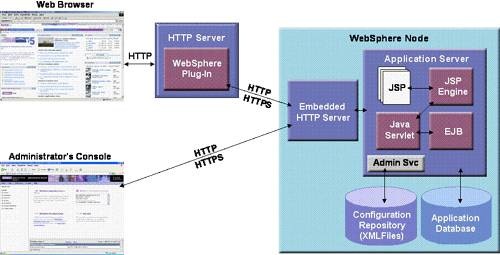
WebSphere architectures contain one or more computer systems, which are referred to in WebSphere terminology as nodes. Nodes exist within a WebSphere cell. A WebSphere cell can contain one node on which all software components are installed or multiple nodes on which the software components are distributed.

A typical WebSphere cell contains software components that may be installed on one node or distributed over multiple nodes for scalability and reliability purposes. These include the following:

  • A Web server that provides HTTP services
  • A database server for storing application data
  • WebSphere Application Server (WAS) V5

clip_image002

HTTP server
The HTTP server, more typically known as the Web server, accepts page requests from Web browsers and returns Web page content to Web browsers using the HTTP protocol. Requests for Java servlets and JavaServer Pages (JSPs) are passed by the Web server to WebSphere for execution. WebSphere executes the servlet or JSP and returns the response to the Web server, which in turn forwards the response to the Web browser for display.

WebSphere V5 supports numerous Web servers such as Apache, Microsoft IIS, Netscape and Domino. However, WebSphere has the tightest integration with Domino because IBM provides single sign-on capabilities between WebSphere and Domino.

WebSphere plug-in
The WebSphere plug-in integrates with the HTTP Server and directs requests for WebSphere resources (servlets, JSPs, etc.) to the embedded HTTP server (see below). The WebSphere plug-in uses a configuration file called plugin-cfg.xml file to determine which requests are to be handled by WebSphere. As applications are deployed to the WebSphere configuration, this file must be regenerated (typically using the Administration Console) and distributed to all Web servers, so that they know which URL requests to direct to WebSphere. This is one of the few manual processes that a WebSphere administrator must do to maintain the WebSphere environment.

Application server
The application server provides a run-time environment for J2EE applications (supporting servlets, JSPs, Enterprise JavaBeans, etc.). A node can have one or more application server processes. Each application server runs in its own runtime environment called a Java Virtual Machine (JVM). The JVM provides complete isolation (crash protection) for individual applications servers.

Application database
WebSphere applications such as IBM’s commerce and portal products, as well as applications you create yourself, use a relational database for storing configuration information and data. WebSphere V5 ships with the Cloudscape database and supports a wide range of database product, including the following:

  • IBM DB2
  • Informix
  • Oracle
  • SQL Server
  • Sybase

Administration console
The administration console provides a Web-based interface for managing a WebSphere cell from a central location. The administration console can be used to change the configuration of any node within the cell at run-time. Configuration changes are automatically distributed to other nodes in the cell.

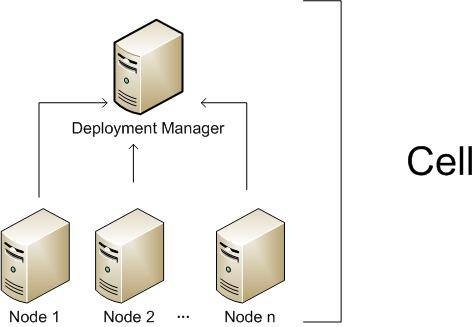
Cell:

A Cell is a virtual unit that is built of a Deployment Manager and one or more nodes.

clip_image004

The Deployment Manager is a process (in fact it is an special WebSphere instance) responsible for managing the installation and maintenance of Applications, Connection Pools and other resources related to a J2EE environment. It is also responsible for centralizing user repositories for application and also for WebSphere authentication and authorization.

The Deployment Manager communicates with the Nodes through another special WebSphere process, the Node Agent.

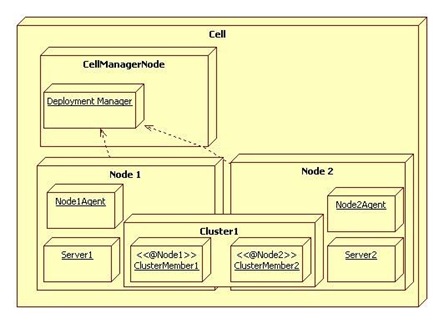
The Node is another virtual unit that is built of a Node Agent and one or more Server instances.

The Node Agent it the process responsible for spawning and killing server processes and also responsible for configuration synchronization between the Deployment Manager and the Node. Extra care must be taken when changing security configurations for the cell, since communication between Deployment Manager and Node Agent is ciphered and secured when security is enabled, Node Agent needs to have configuration fully resynchronized when impacting changes are made to Cell security configuration.

Servers are regular Java process responsible for serving J2EE requests (eg.: serving JSP/JSF pages, serving EJB calls, consuming JMS queues, etc).

Clusters

And to finish, Clusters are also virtual units that groups Servers so resources added to the Cluster are propagated to every Server that makes up the cluster, this will in fact affect usually more than a single Node instance.

clip_image006

Tuning Java virtual Machines

Posted by Sagar Patil

The application server, being a Java process, requires a Java virtual machine (JVM) to run, and to support the Java applications running on it. As part of configuring an application server, you can fine-tune settings that enhance system use of the JVM.

A JVM provides the runtime execution environment for Java based applications. WebSphere Application Server is a combination of a JVM runtime environment and a Java based server runtime. It can run on JVMs from different JVM providers. To determine the JVM provider on which your Application Server is running, issue the java -fullversion command from within your WebSphere Application Server app_server_root/java/bin directory. You can also check the SystemOut.log from one of your servers. When an application server starts, Websphere Application Server writes information about the JVM, including the JVM provider information, into this log file.

From a JVM tuning perspective, there are two main types of JVMs:

* IBM JVMs
* Sun HotSpot based JVMs, including Sun HotSpot JVM on Solaris and HP’s JVM for HP-UX

Even though JVM tuning is dependent on the JVM provider general tuning concepts apply to all JVMs. These general concepts include:

* Compiler tuning. All JVMs use Just In Time (JIT) compilers to compile Java byte codes into native instructions during server run-time.
* Java memory or heap tuning. The JVM memory management function, or garbage collection provides one of the biggest opportunities for improving JVM performance.
* Class loading tuning.

Procedure

* Optimize the startup performance and the runtime performance

In some environments, it is more important to optimize the startup performance of your WebSphere Application Server rather than the runtime performance. In other environments, it is more important to optimize the runtime performance. By default, IBM JVMs are optimized for runtime performance while HotSpot based JVMs are optimized for startup performance.

The Java JIT compiler has a big impact on whether startup or runtime performance is optimized. The initial optimization level used by the compiler influences the length of time it takes to compile a class method and the length of time it takes to start the server. For faster startups, you can reduce the initial optimization level that the compiler uses. This means that the runtime performance of your applications may be degraded because the class methods are now compiled at a lower optimization level.

It is hard to provide a specific runtime performance impact statement because the compilers might recompile class methods during runtime execution based upon the compiler’s determination that recompiling might provide better performance. Ultimately, the duration of the application is a major influence on the amount of runtime degradation that occurs. Short running applications have a higher probability of having their methods recompiled. Long-running applications are less likely to have their methods recompiled. The default settings for IBM JVMs use a high optimization level for the initial compiles. You can use the following IBM JVM option if you need to change this behavior:

-Xquickstart This setting influences how the IBM JVM uses a lower optimization level for class method compiles, which provides for faster server startups, at the expense of runtime performance. If this parameter is not specified, the IBM JVM defaults to starting with a high initial optimization level for compiles. This setting provides faster runtime performance at the expense of slower server starts.

Default: High initial compiler optimizations level
Recommended: High initial compiler optimizations level
Usage: -Xquickstart can provide faster server startup times.

JVMs based on Sun’s Hotspot technology initially compile class methods with a low optimization level. Use the following JVM option to change this behavior:

-server JVMs based on Sun’s Hotspot technology initially compile class methods with a low optimization level. These JVMs use a simple complier and an optimizing JIT compiler. Normally the simple JIT compiler is used. However you can use this option to make the optimizing compiler the one that is used. This change will significantly increases the performance of the server but the server takes longer to warm up when the optimizing compiler is used.

Default: Simple compiler
Recommended: Optimizing compiler
Usage: -server enables the optimizing compiler.

* Set the heap size The following command line parameters are useful for setting the heap size.

* -Xms This setting controls the initial size of the Java heap. Properly tuning this parameter reduces the overhead of garbage collection, improving server response time and throughput. For some applications, the default setting for this option might be too low, resulting in a high number of minor garbage collections

Default: 256 MB
Recommended: Workload specific, but higher than the default.
Usage: -Xms256m sets the initial heap size to 256 megabytes

* -Xmx This setting controls the maximum size of the Java heap. Properly tuning this parameter can reduce the overhead of garbage collection, improving server response time and throughput. For some applications, the default setting for this option is too low, resulting in a high number of minor garbage collections.

Default: 512 MB
Recommended: Workload specific, but higher than the default.
Usage: -Xmx512m sets the maximum heap size to 512 megabytes

* -Xlp This setting can be used with the IBM JVM to allocate the heap using large pages. However, if you use this setting your operating system must be configured to support large pages. Using large pages can reduce the CPU overhead needed to keep track of heap memory and might also allow the creation of a larger heap.

See Tuning operating systems for more information about tuning your operating system.

* The size you should specify for the heap depends on your heap usage over time. In cases where the heap size changes frequently, you might improve performance if you specify the same value for the Xms and Xmx parameters.

* Tune the IBM JVM’s garbage collector.

Use the Java -X option to see the list of memory options.

* -Xgcpolicy Setting gcpolicy to optthruput disables concurrent mark. If you do not have pause time problems, denoted by erratic application response times, you should get the best throughput using this option. Setting gcpolicy to optavgpause enables concurrent mark with its default values. This setting alleviates erratic application response times caused by normal garbage collection. However, this option might decrease overall throughput.

Default: optthruput
Recommended: optthruput
Usage: Xgcpolicy:optthruput

* -Xnoclassgc By default the JVM unloads a class from memory when there are no live instances of that class left, but this can degrade performance. Turning off class garbage collection eliminates the overhead of loading and unloading the same class multiple times.

If a class is no longer needed, the space that it occupies on the heap is normally used for the creation of new objects. However, if you have an application that handles requests by creating a new instance of a class and if requests for that application come in at random times, it is possible that when the previous requester is finished, the normal class garbage collection will clean up this class by freeing the heap space it occupied, only to have to re-instantiate the class when the next request comes along. In this situation you might want to use this option to disable the garbage collection of classes.

Avoid trouble: This option should be used with caution, if your application creates classes dynamically, or uses reflection, because for this type of application, the use of this option can lead to native memory exhaustion, and cause the JVM to throw an Out-of-Memory Exception. When this option is used, if you have to redeploy an application, you should always restart the application server to clear the classes and static data from the pervious version of the application.gotcha

Default: class garbage collection enabled
Recommended: class garbage collection disabled
Usage: Xnoclassgc disables class garbage collection

* Tune the Sun JVM’s garbage collector

On the Solaris platform, the WebSphere Application Server runs on the Sun Hotspot JVM rather than the IBM JVM. It is important to use the correct tuning parameters with the Sun JVM in order to utilize its performance optimizing features.

The Sun HotSpot JVM relies on generational garbage collection to achieve optimum performance. The following command line parameters are useful for tuning garbage collection.

* -XX:SurvivorRatio The Java heap is divided into a section for old (long lived) objects and a section for young objects. The section for young objects is further subdivided into the section where new objects are allocated (eden) and the section where new objects that are still in use survive their first few garbage collections before being promoted to old objects (survivor space). Survivor Ratio is the ratio of eden to survivor space in the young object section of the heap. Increasing this setting optimizes the JVM for applications with high object creation and low object preservation. Since WebSphere Application Server generates more medium and long lived objects than other applications, this setting should be lowered from the default.

Default: 32
Recommended: 16
Usage: -XX:SurvivorRatio=16

* -XX:PermSize The section of the heap reserved for the permanent generation holds all of the reflective data for the JVM. This size should be increased to optimize the performance of applications that dynamically load and unload a lot of classes. Setting this to a value of 128MB eliminates the overhead of increasing this part of the heap.

Recommended: 128 MB
Usage: XX:PermSize=128m sets perm size to 128 megabytes.

* -Xmn This setting controls how much space the young generation is allowed to consume on the heap. Properly tuning this parameter can reduce the overhead of garbage collection, improving server response time and throughput. The default setting for this is typically too low, resulting in a high number of minor garbage collections. Setting this setting too high can cause the JVM to only perform major (or full) garbage collections. These usually take several seconds and are extremely detrimental to the overall performance of your server. You must keep this setting below half of the overall heap size to avoid this situation.

Default: 2228224 bytes
Recommended: Approximately 1/4 of the total heap size
Usage: -Xmn256m sets the size to 256 megabytes.

* -Xnoclassgc By default the JVM unloads a class from memory when there are no live instances of that class left, but this can degrade performance. Turning off class garbage collection eliminates the overhead of loading and unloading the same class multiple times.

If a class is no longer needed, the space that it occupies on the heap is normally used for the creation of new objects. However, if you have an application that handles requests by creating a new instance of a class and if requests for that application come in at random times, it is possible that when the previous requester is finished, the normal class garbage collection will clean up this class by freeing the heap space it occupied, only to have to re-instantiate the class when the next request comes along. In this situation you might want to use this option to disable the garbage collection of classes.

Default: class garbage collection enabled
Recommended: class garbage collection disabled
Usage: Xnoclassgc disables class garbage collection

* Tune the HP JVM’s garbage collector

The HP JVM relies on generational garbage collection to achieve optimum performance. The following command line parameters are useful for tuning garbage collection.

* -Xoptgc This setting optimizes the JVM for applications with many short-lived objects. If this parameter is not specified, the JVM usually does a major (full) garbage collection. Full garbage collections can take several seconds and can significantly degrade server performance.

Default: off
Recommended: on
Usage: -Xoptgc enables optimized garbage collection.

* -XX:SurvivorRatio The Java heap is divided into a section for old (long lived) objects and a section for young objects. The section for young objects is further subdivided into the section where new objects are allocated (eden) and the section where new objects that are still in use survive their first few garbage collections before being promoted to old objects (survivor space). Survivor Ratio is the ratio of eden to survivor space in the young object section of the heap. Increasing this setting optimizes the JVM for applications with high object creation and low object preservation. Since WebSphere Application Server generates more medium and long lived objects than other applications, this setting should be lowered from the default.

Default: 32
Recommended: 16
Usage: -XX:SurvivorRatio=16

* -XX:PermSize The section of the heap reserved for the permanent generation holds all of the reflective data for the JVM. This size should be increased to optimize the performance of applications which dynamically load and unload a lot of classes. Specifying a value of 128 megabytes eliminates the overhead of increasing this part of the heap.

Default: 0
Recommended: 128 megabytes
Usage: -XX:PermSize=128m sets PermSize to 128 megabytes

* -XX:+ForceMmapReserved By default the Java heap is allocated “lazy swap.” This saves swap space by allocating pages of memory as needed, but this also forces the use of 4KB pages. This allocation of memory can spread the heap across hundreds of thousands of pages in large heap systems. This command disables “lazy swap” and allows the operating system to use larger memory pages, thereby optimizing access to the memory making up the Java heap.

Default: off
Recommended: on
Usage: -XX:+ForceMmapReserved will disable “lazy swap”.

* -Xmn This setting controls how much space the young generation is allowed to consume on the heap. Properly tuning this parameter can reduce the overhead of garbage collection, improving server response time and throughput. The default setting for this is typically too low, resulting in a high number of minor garbage collections.

Default: No default
Recommended: Approximately 1/4 of the total heap size
Usage: -Xmn256m sets the size to 256 megabytes

* Virtual Page Size Setting the Java virtual machine instruction and data page sizes to 64MB can improve performance.

Default: 4MB
Recommended: 64MB
Usage: Use the following command. The command output provides the current operating system characteristics of the process executable:

chatr +pi64M +pd64M /opt/WebSphere/
AppServer/java/bin/PA_RISC2.0/
native_threads/java

* -Xnoclassgc By default the JVM unloads a class from memory when there are no live instances of that class left, but this can degrade performance. Turning off class garbage collection eliminates the overhead of loading and unloading the same class multiple times.

If a class is no longer needed, the space that it occupies on the heap is normally used for the creation of new objects. However, if you have an application that handles requests by creating a new instance of a class and if requests for that application come in at random times, it is possible that when the previous requester is finished, the normal class garbage collection will clean up this class by freeing the heap space it occupied, only to have to re-instantiate the class when the next request comes along. In this situation you might want to use this option to disable the garbage collection of classes.

Default: class garbage collection enabled
Recommended: class garbage collection disabled
Usage: Xnoclassgc disables class garbage collection

Webspehere java 100% CPU usage : MustGather Information

Posted by Sagar Patil

Perform the following setup instructions:
1.    Follow instructions to enable verbosegc in WebSphere Application Server

2.    Run the following command:

top -d %delaytime% -c -b > top.log

Where delaytime is the number of seconds to delay. This must be 60 seconds or greater, depending on how soon the failure is expected.

3.    Run the following:

netstat -an > netstat1.out

4.    Run the following:

kill -3 [PID_of_problem_JVM]

The kill -3 command will create javacore*.txt files or javacore data written to the stderr file of the Application Server.
Note: If you are not able to determine which JVM process is experiencing the high CPU usage then you should issue the kill -3 PID for each of the JVM processes.

5.    Wait two minutes. Run the following:

kill -3 [PID_of_problem_JVM]

6.    Wait two minutes. Run the following:

netstat -an > netstat2.out

7.    If you are unable to generate javacore files, then perform the following:

kill -11 [PID_of_problem_JVM]

The kill -11 will terminate the JVM process, produce a core file, and possibly a javacore.

Collect following documentation for uploading to IBM support:

– All Application Server JVM log files for the Application Server experiencing the problem.
– All administrative server log files from the machine experiencing the problem.
– WebSphere Application Server plug-in log
– Web server error and access log
– top.log, ps_eLf.log and vmstat.log
– javacore*.*
– All netstat*.out files
– /var/log/messages
– Indicate which JVM, such as the Application Server or administrative server, is experiencing the problem.

Http Error Codes

Posted by Sagar Patil

Have you ever wondered what the codes listed at Apache acces_log mean

172.21.90.160 – – [05/Jan/2010:08:15:42 +0000] “GET HTTP/1.1” 200 554
172.21.90.160 – – [05/Jan/2010:08:15:42 +0000] “GET  HTTP/1.1” 304
172.21.90.160 – – [05/Jan/2010:08:15:42 +0000] “GET HTTP/1.1” 304 Read more…

Top of Page

Top menu